How to Give Someone Access to Your Google Business Profile (Step-by-Step Guide)
How to give an agency, manager or employee access to your Google Business Profile, step by step, on desktop and mobile, without sharing your password.

You've hired a digital marketing agency, brought someone on to help manage your business listing, or need an employee to update your Google Business Profile. When they ask for access, it's natural to hesitate. Handing over your Google password feels risky, and it should.
The good news is that you don't need to share it. Google lets you invite other people to manage your Business Profile directly, with their own login and their own set of permissions. In this guide, we'll walk through exactly how to do that on both desktop and mobile, what the different access levels mean, and how to handle the most common hiccups along the way.
Understanding Google Business Profile Access Roles
Before you invite anyone, it helps to know what you're actually giving them. Google Business Profile has three access levels: Primary Owner, Owner and Manager.
Primary Owner
The main account holder for the profile. A profile can have several owners, but only one primary owner at a time. The primary owner can't remove themselves from the profile until they transfer primary ownership to someone else first.
Owner
Full control over the profile, including editing business information, managing photos and posts, responding to reviews, and adding or removing other users. The only thing an Owner doesn't hold is the primary owner title itself.
Manager
Nearly identical access to an Owner. Managers can edit business info, publish posts, manage photos and products, respond to reviews and messages, and view performance insights. What they cannot do is add or remove other users, or delete the Business Profile.
This is exactly why Manager access is the right choice when you're bringing on a digital marketing agency. It gives them everything they need to actually do the work — updating your listing, posting updates, replying to reviews — without handing over control of who else has access or the ability to delete your profile outright. You stay in charge of your own listing, and your agency gets full working access.
Both the standard Owner and Manager roles let someone actively manage your profile without ever becoming the primary owner. Primary ownership is a separate, specific designation that only changes hands when you deliberately transfer it.
Only an Owner can change someone's role or remove another Owner or Manager. If you're the one who added your agency, you'll always be able to adjust or revoke their access later. For a wider look at why these roles matter for your visibility, see our complete guide to local SEO for small businesses.
Before You Get Started
You'll need three things before you begin:
- An existing, verified Google Business Profile that you can already access.
- The email address of the person or agency you want to invite, ideally the one tied to the Google Account they'll use to manage the profile.
- Access to the Google Account that currently manages your business listing.
Ask the person you're inviting for the exact email address linked to their Google Account, not just any email they use. If they're joining on behalf of an agency, double-check whether they want a personal work email or a shared team account invited, since that affects who can log in and manage the profile.
And one more reminder, because it's worth repeating: never share your Google account password with anyone, including your own marketing agency. A proper invitation means they log in with their own credentials, and you can remove their access at any time without changing your password.
How to Give Google Business Profile Access Using a Desktop
The simplest way to manage who has access to your profile is through a web browser on your computer.
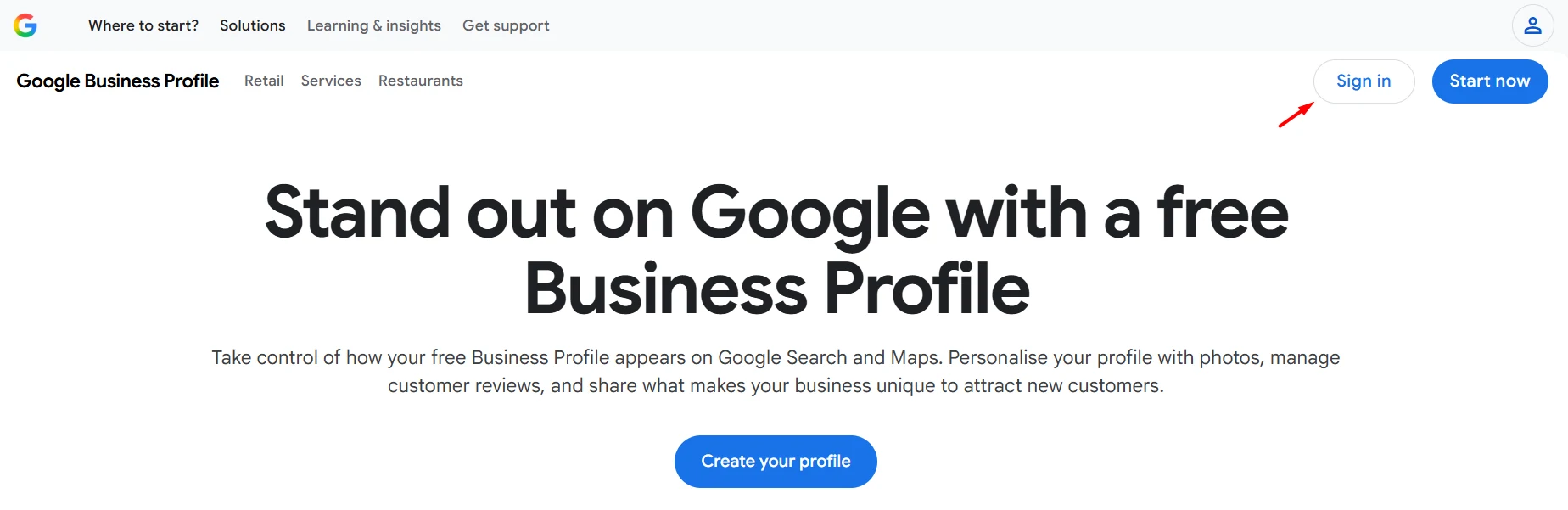
Step 1: Sign in to the Google Account that manages your business
Go to business.google.com and sign in with the Google Account linked to your Business Profile.
Step 2: Open your Business Profile settings
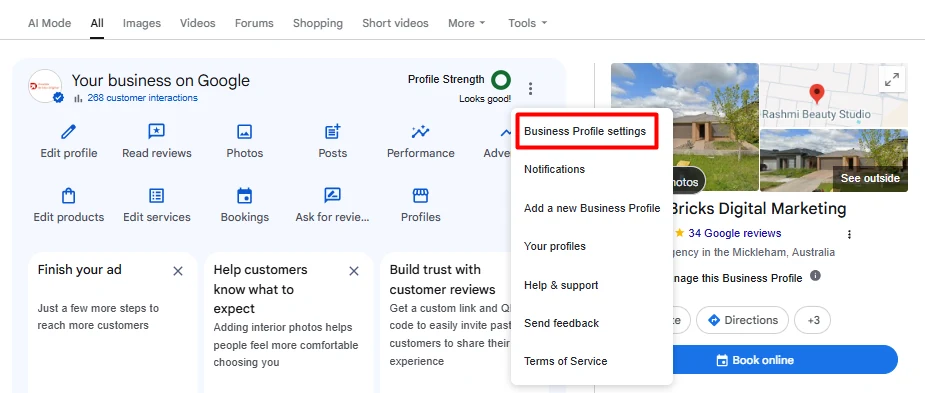
Once you're on your profile, select More from the menu, then choose Business Profile settings.
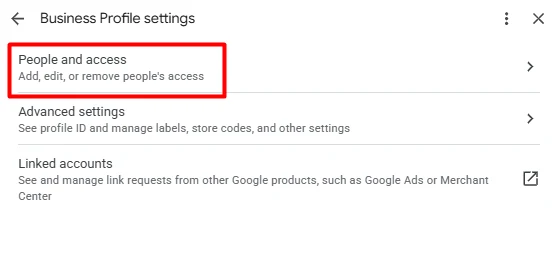
Step 3: Go to "People and access"
Inside Business Profile settings, select People and access. This is where every current Owner and Manager is listed, along with any invitations that haven't been accepted yet.
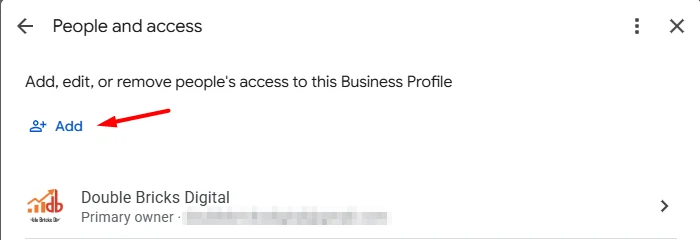
Step 4: Select the option to add a person
Look for the Add icon, usually near the top left of the People and access screen, and select it.
Step 5: Enter the recipient's email address
Type in the Google-associated email address for the person or agency you're inviting.
Step 6: Choose the right role
Under Access, select either Owner or Manager. For a digital marketing agency, Manager is almost always the appropriate choice, since it gives them full working access without handing over control of the listing itself.
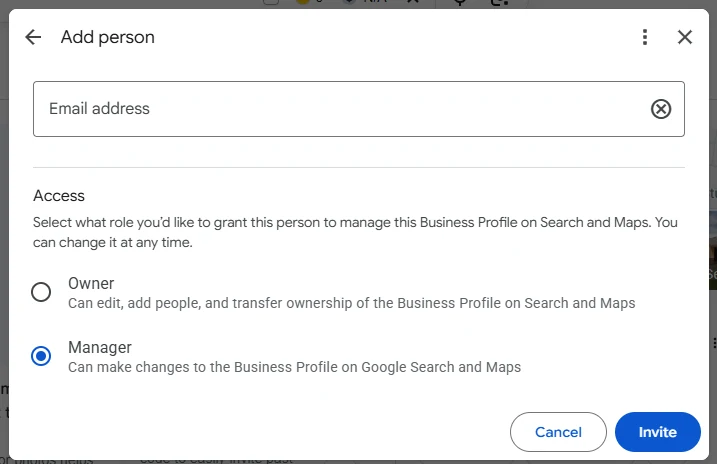
Step 7: Send the invitation
Select Invite to send it. The person will need to accept it before they can start managing your profile.
Because Google updates this interface from time to time, the exact wording of a button or menu item might shift slightly. If something doesn't look exactly like what's described here, the underlying steps — find People and access, add a user, choose a role, send the invite — will still hold true. Google's own help page on managing Business Profile owners and managers is the place to check if anything has moved.
How to Give Google Business Profile Access Using a Mobile Phone
At the time of writing, People and access at business.google.com is the supported way to add or remove Owners and Managers, whether you're on a computer or a phone. The Google Maps app lets you edit your business information, respond to reviews and post updates, but it doesn't currently include a dedicated screen for managing who has access. For that specific task, use your phone's browser rather than the Maps app.
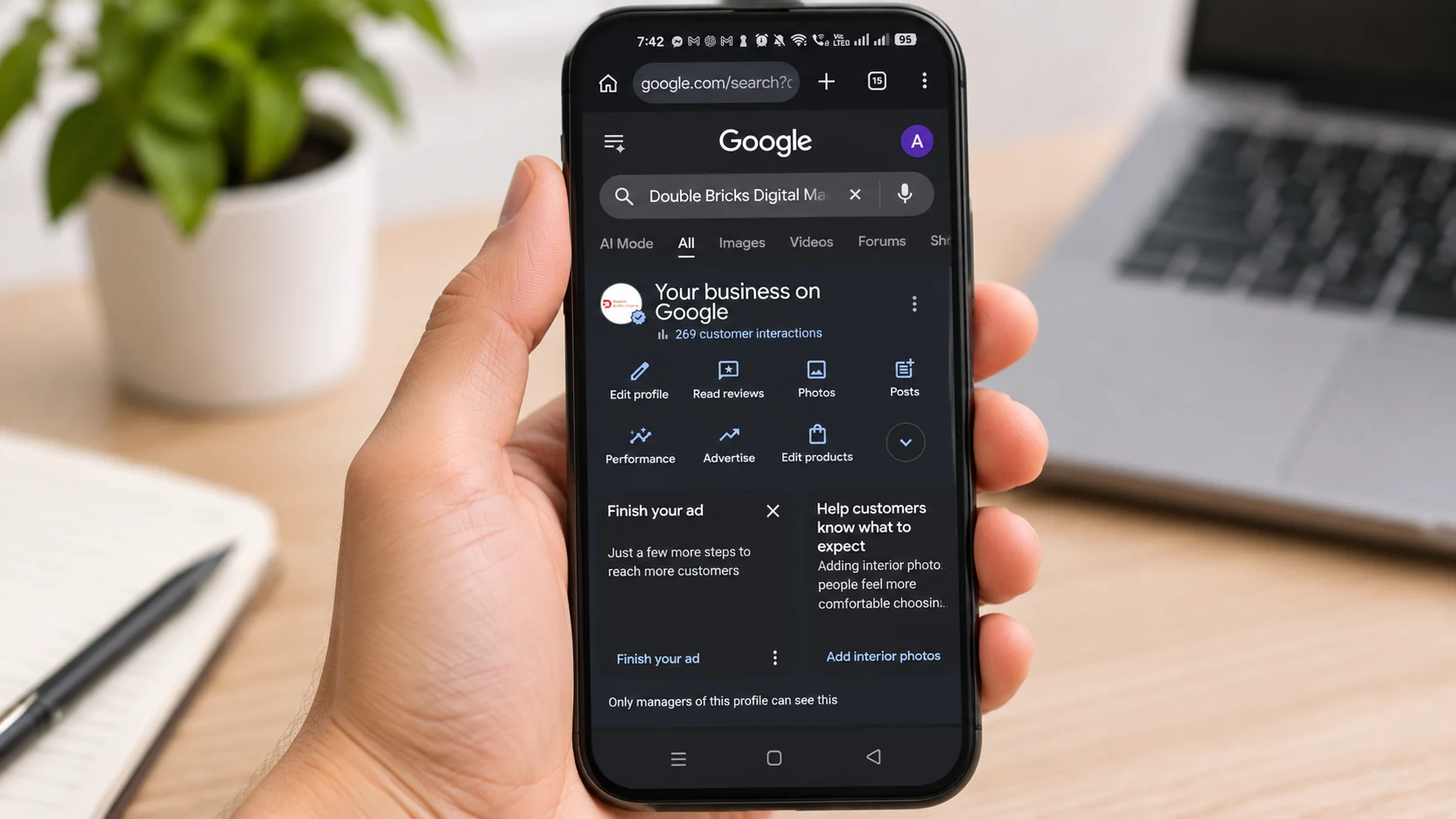
Open your mobile browser, go to business.google.com, sign in, and follow Steps 2 through 7 from the desktop instructions above. The screens are responsive and adjust to your phone's size, but the navigation stays the same.
How to Accept a Google Business Profile Invitation
Once you've sent the invitation, here's what happens on the other end.
Google emails the invited person a notification with an Accept button, so the quickest route is usually straight from their inbox. The pending invitation also appears when they sign in to business.google.com with the Google Account you invited, which is the reliable fallback if the email goes astray or lands in spam.
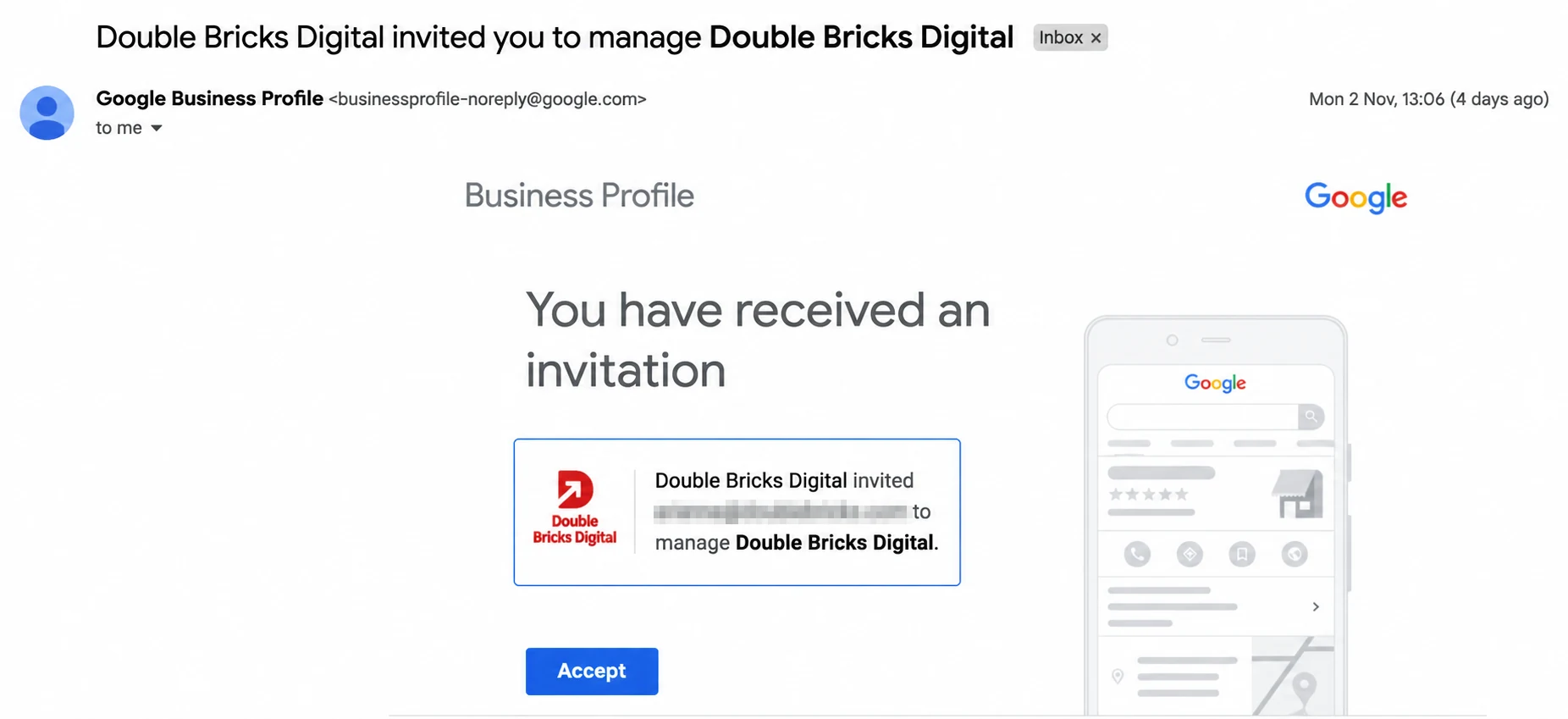
If they can't find the invitation in either place, the most common reason is that they're signed in to the wrong Google Account. Encourage them to check that they're using the exact email address you entered when you sent the invite.
Google doesn't publish a fixed waiting period for how long it takes for an invitation to show up, so if it hasn't appeared after a reasonable amount of time, double-check the email address before trying again. Once accepted, the new Manager or Owner can start working straight away, though a few administrative actions — like removing other users or transferring ownership — are restricted for the first seven days as a safeguard.
Common Google Business Profile Access Issues
- You entered the wrong email address. Cancel the pending invitation from the People and access screen: find it under the "Pending" section, select it, and choose "Cancel invitation." Then send a new one with the correct address.
- The recipient already has access. If someone already appears as an Owner or Manager on your profile, you won't be able to invite them again at the same role. Check the People and access list first before sending a new invitation.
- You can't find the People and access settings. This usually means you're signed in with an account that only has Manager access, not Owner access. Only Owners can see and use the full People and access management screen to add or remove users. If that's the case, ask whoever holds Owner access to make the change, or to upgrade your role first.
- A different Google account manages the listing. If your business was originally set up under a different email address — perhaps one from a previous employee or agency — you'll need to sign in with that account to manage access, or have the current Owner add you first. If nobody at your business can reach that account any more, work through Google's own Business Profile claiming and recovery process rather than creating a duplicate listing.
- The profile isn't verified yet, or has other restrictions. An unverified or restricted Business Profile can limit which features and settings are available, including People and access. If you're running into unexpected limitations, it's worth checking your profile's verification status first.
- You manage more than one business or location. You can switch between every profile you have access to from within business.google.com, and each profile keeps its own separate list of Owners and Managers — so adding your agency to one location does not add them to the others.
Is It Safe to Give a Digital Marketing Agency Access?
Yes, and this is one of the most common questions business owners ask us.
Individual invitations, rather than a shared password, are what make this safe. Each person logs in with their own Google Account, so you can see exactly who has access at any time and remove any single person without affecting anyone else or needing to change your own password.
Manager access, specifically, is the right level for most agency relationships. It gives your agency everything they need to do the work you're paying them for — updating your listing, posting content, responding to reviews and messages, reviewing performance insights — while keeping the ability to add, remove or restructure access squarely in your hands as the Owner.
Your business keeps ownership of its own listing throughout the relationship. If you ever change agencies or decide to bring the work in-house, go back to People and access, select the agency's account, and remove their access. It takes effect immediately, and nothing about your listing's history, reviews or performance data is affected. We've applied this same approach for clients like A1 Metal Mesh Screens and Mickleham Physiotherapy, managing their Google Business Profile access as part of broader SEO campaigns.
A Simpler Way to Manage Your Business Profile
Managing who has access to your Google Business Profile doesn't need to be complicated, and it definitely doesn't require sharing your password with anyone. A few minutes in People and access is all it takes to bring on the right help while keeping full ownership of your listing in your own hands.
Need help managing or improving your Google Business Profile? Double Bricks Digital can help you strengthen your local online presence, optimise your business listing and reach more potential customers through our Search Marketing (SEO/SEM) service — you can see the results in our case studies.
Get in touch with our team to find out how we can help.
Frequently Asked Questions
Can I give my SEO agency access without sharing my Google password?
Yes. Invite them through People and access using their email address, and assign them Manager access. They'll log in with their own Google Account, and you'll never need to share your password.
Should I give my marketing agency Owner or Manager access?
Manager access is the right choice for most agencies. It gives them full working access to manage your listing without the ability to add or remove other users or delete the profile itself.
Can I give access to multiple people?
Yes. A Business Profile can have multiple Owners and Managers at the same time. Each person is added individually through the same People and access process.
Can I remove someone from my Google Business Profile?
Yes, as long as you're an Owner. Go to People and access, select the person, and choose "Remove person." Their access ends immediately, though any reviews they've replied to or posts they've published will remain on the profile.